
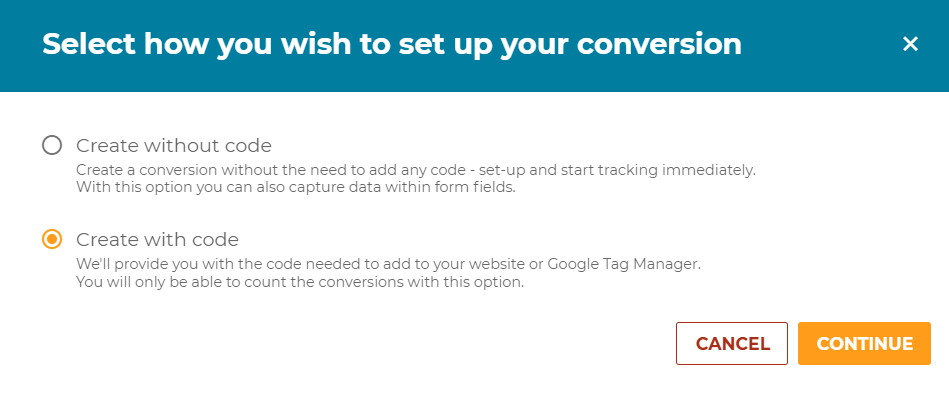
Once you've selected to create a conversion with code, you will navigate to the creation screen.
In the first field, enter a name for your conversion which would make it easily identifiable for tracking e.g. contact page form
At this stage you can mark the conversion as a key conversion, which identifies those most important to your business. This is done by clicking on the star icon and will ensure that you can filter your reports to focus on your top performance metrics. 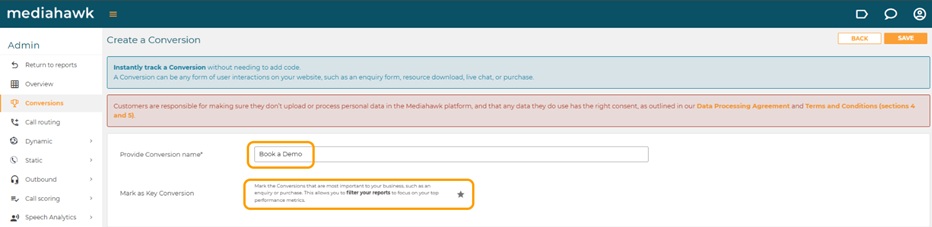
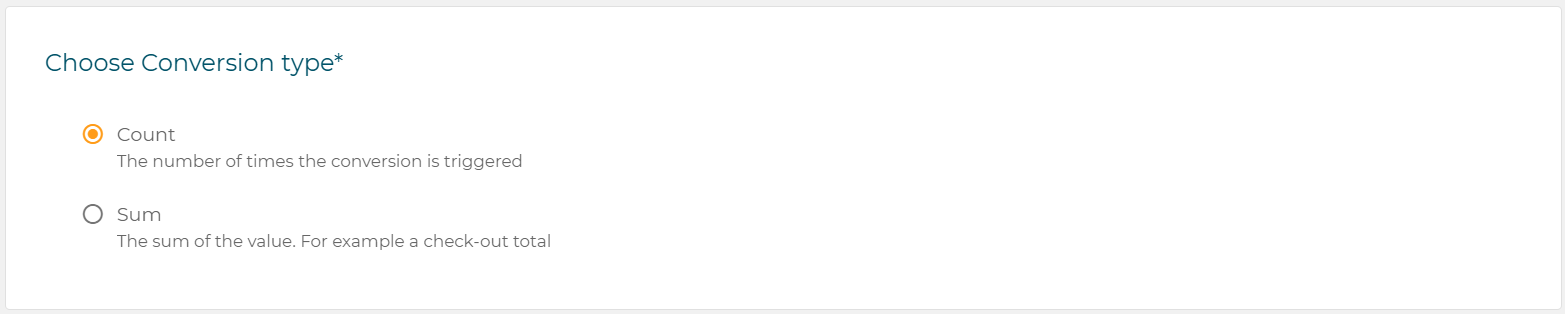
When selecting the conversion type, this can either be a Count or Sum total:
Count = the number of times it was triggered. e.g. you had 10 click actions on your email address, Mediahawk totals the number of clicks for the date period selected
Sum= the sum of a value. e.g. your checkout total was £200 for the interaction, Mediahawk totals the “Sum” for the date period selected.
You should then create or select a conversion category. This assigns a label to each conversion so they can be grouped e.g. Sale, Service, etc. These can then be used in filters and secondary dimensions to gain more granularity in your reports.

SAVE your conversion.
When tracking with code, the next steps occur in Google Tag Manager and differ slightly depending on what is being tracked. Click on the relevant option to continue your setup:
- Setting up tracking email clicks in Google Tag Manager
- Setting up tracking Chat in Google Tag Manager
- Setting up tracking form fills in Google Tag Manager