Login to your Google Tag Manager (GTM) If you do not currently use Google Tag Manager or need help with this part of the setup, please contact your website support or development Team >Within GTM you need to set a new Trigger
Select Triggers
Select New

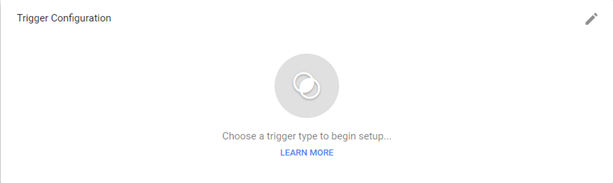
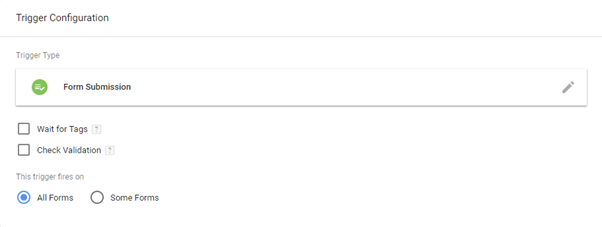
When you see the screen below, hover your mouse over the Trigger Configuration screen until the Edit pencil Icon appears. Then Click the Pencil Icon which will open a Choose Trigger type window
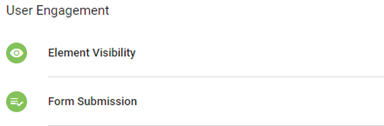
Select Form Submission under the User Engagement section
This will open a Trigger Configuration window Select the All Forms radio button
Click SAVE. You will be asked to Rename the Trigger In this example, we have used Form Fill but you can label it anything you like to identify it.
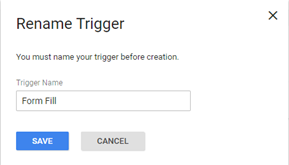
Click SAVE. This will create the trigger and will show you in the list below.

Now you need to create a Tag to pair with a Trigger Select Tags
Select New

When you see the screen below, hover your mouse over the Tag Configuration screen until the pencil icon appears. Click the Pencil Icon which opens a Choose Tag typewindow
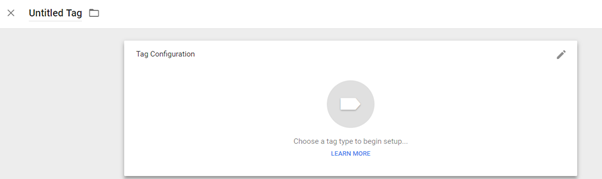
Select Custom HTML (Custom HTML Tag) under the Custom section.
Navigate back to your open Mediahawk browser window and copy the code for the relevant Conversion. A tick icon appears to indicate that it has copied it your clipboard.

Go back to your GTM account window and paste the copied code into the HTML as per the example below.
Please note: If GTM does not automatically apply the Script tags around the pasted value you will need to add these manually so the full code looks like this:
<script>
[Code you have copied}
</script>
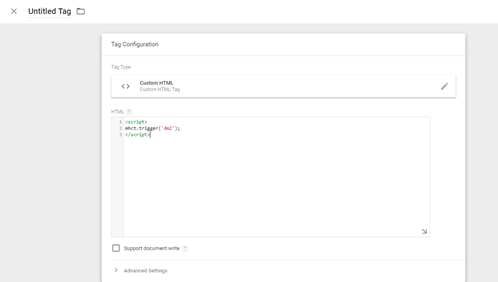
To select the Trigger you want to pair with the Tag. Hover your mouse over the Triggering screen until the pencil Icon appears. Click the Pencil Icon.
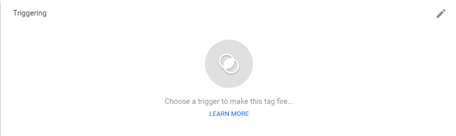
This will open a Choose a trigger window Select the Trigger you setup earlier to track (in our example we named it Form Fill).

Once the trigger has been selected, it will show the setup below
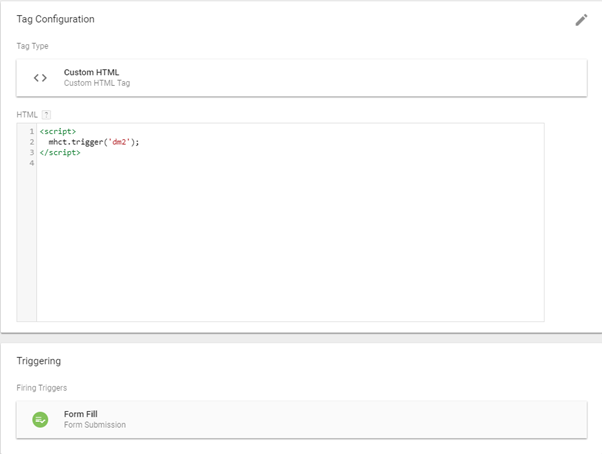
Click SAVE.You will be asked to Rename the Tag, in this example we have used Mediahawk - Track Form Submission (but you can use any name you wish)
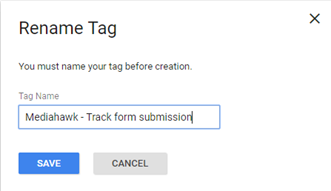
Click SAVE That's it. all done! You will start to see the Call-to-Actions logged in Mediahawk in both the customer journey and as a Secondary Dimension in reports.
Amending the Call to Action name and type
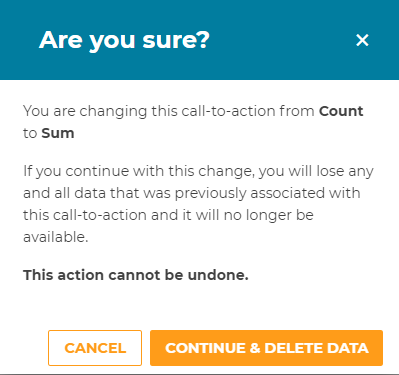
Once a Call-to-Action is setup you can modify the Name You can also amend the Type (Count / Sum), but please note: changing the type will result in removing any historic data associated to that individual Call-to-Action. You will receive the warning below before being able to proceed
To confirm the change click Continue Delete Data.