
Login to your Google Tag Manager (GTM) If you do not currently use Google Tag Manager or need help with this part of the setup, please contact your website support or development Team. Within GTM you need to set a new Trigger
Select Triggers Select New

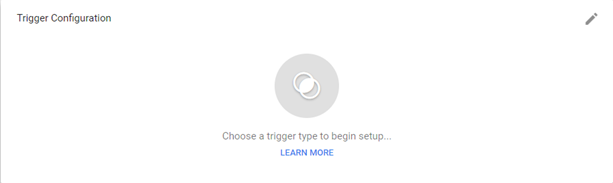
When you see the screen below, hover your mouse over the Trigger Configuration screen until the Edit pencil Icon appears. Then Click the Pencil Icon which will open a Choose Trigger type
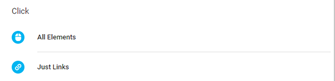
Select Just Links under the Click section
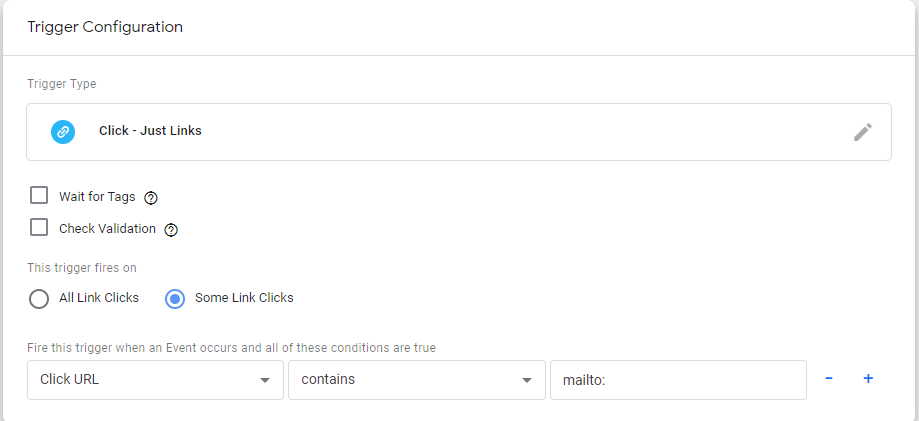
This will open a Trigger Configuration window. Select the Some Link Clicks radio button In the drop-down menus, select Click URL and then Contains.
You then have two choices:
- Enter the email address you want to track, starting with mailto: For example:mailto:info@mediahawk.co.uk
- If you have multiple email addresses on your site and want to track all of them together, just put mailto:in the field. This will total up all instances an email link has been clicked.
Click Save.
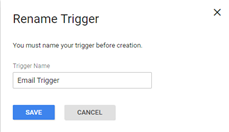
You will be asked to Rename the Trigger. In this example, we have used Email Trigger but you can label it anything you like to identify it.
Click Save.
This will create the trigger and will display in the list as below.

Now you need to create a Tag to pair with a Trigger. Select Tags
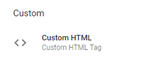
Select New When you see the screen below, hover your mouse over the Tag Configuration screen until the pencil icon appears. Click the Pencil Icon which opens a Choose Tag type window. Select Custom HTML(Custom HTML Tag) under the Custom section.
Navigate back to your open Mediahawk browser window and copy the code for the relevant Conversion. A tick icon appears to indicate that it has copied it your clipboard.

Go back to your GTM account window and paste the copied code into the HTML as per the example below.
Please note: If GTM does not automatically apply the Script tags around the pasted value you will need to add these manually so the full code looks like this:
<script>
[The code you have copied]
</script>
To select the Trigger you want to pair with the Tag, Hover your mouse over the Triggering screen until the pencil Icon appears. Click the Pencil Icon.
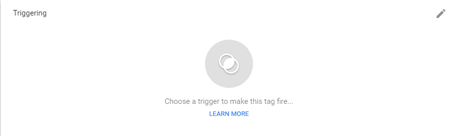
This will open a Choose a trigger window Select the Trigger you setup earlier to track (in our example we named it Email Trigger).
Once the trigger has been selected, it will show the setup below
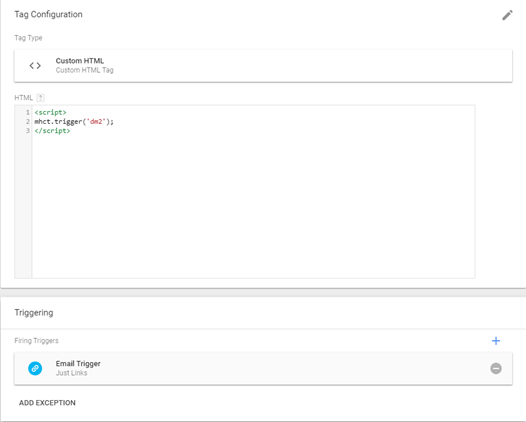
Click Save You will be asked to Rename the Tag, in this example we have used Mediahawk - Track email link clicks(but you can use any name you wish)
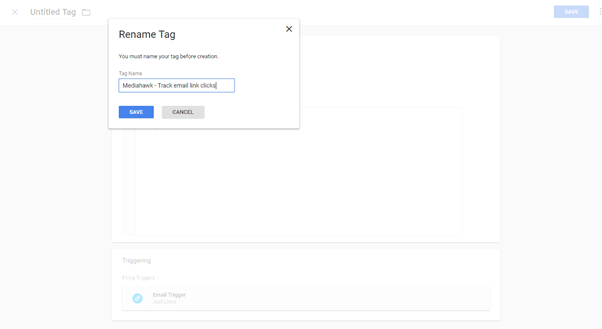
Click SAVE. That's it; all done! You will start to see the Call-to-Actions logged in Mediahawk in both the customer journey and as a Secondary Dimension in reports.