
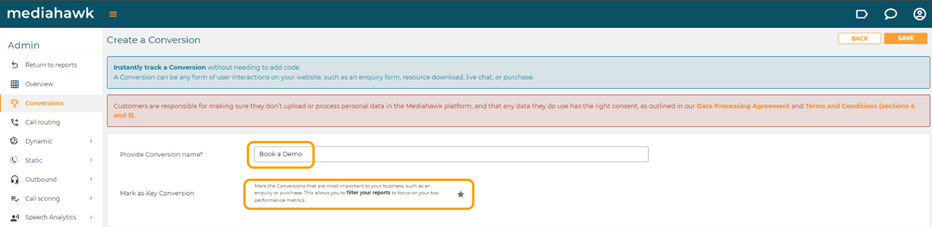
In the first field, enter a name for your conversion which would make it easily identifiable for tracking e.g. contact page form
At this stage you can mark the conversion as a key conversion, which identifies those most important to your business. This is done by clicking on the star icon and will ensure that you can filter your reports to focus on your top performance metrics.
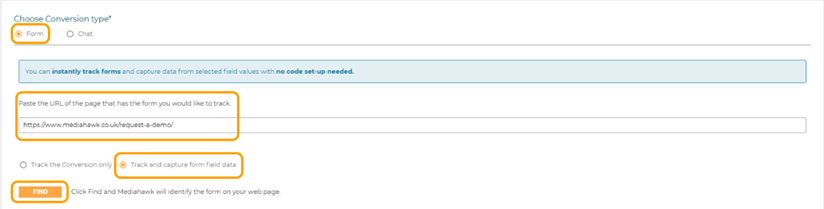
Selecting the conversion type will populate the screen with the relevant fields to set up a form or chat. When Form is selected, you are prompted to paste the URL of the page that has the form you would like to track.
You will then need to select whether you would like to track the conversion only or track and capture the form field data
Once you click Find, Mediahawk will identify the form on your web page.
Track the conversion only, will provide a preview of the related form.
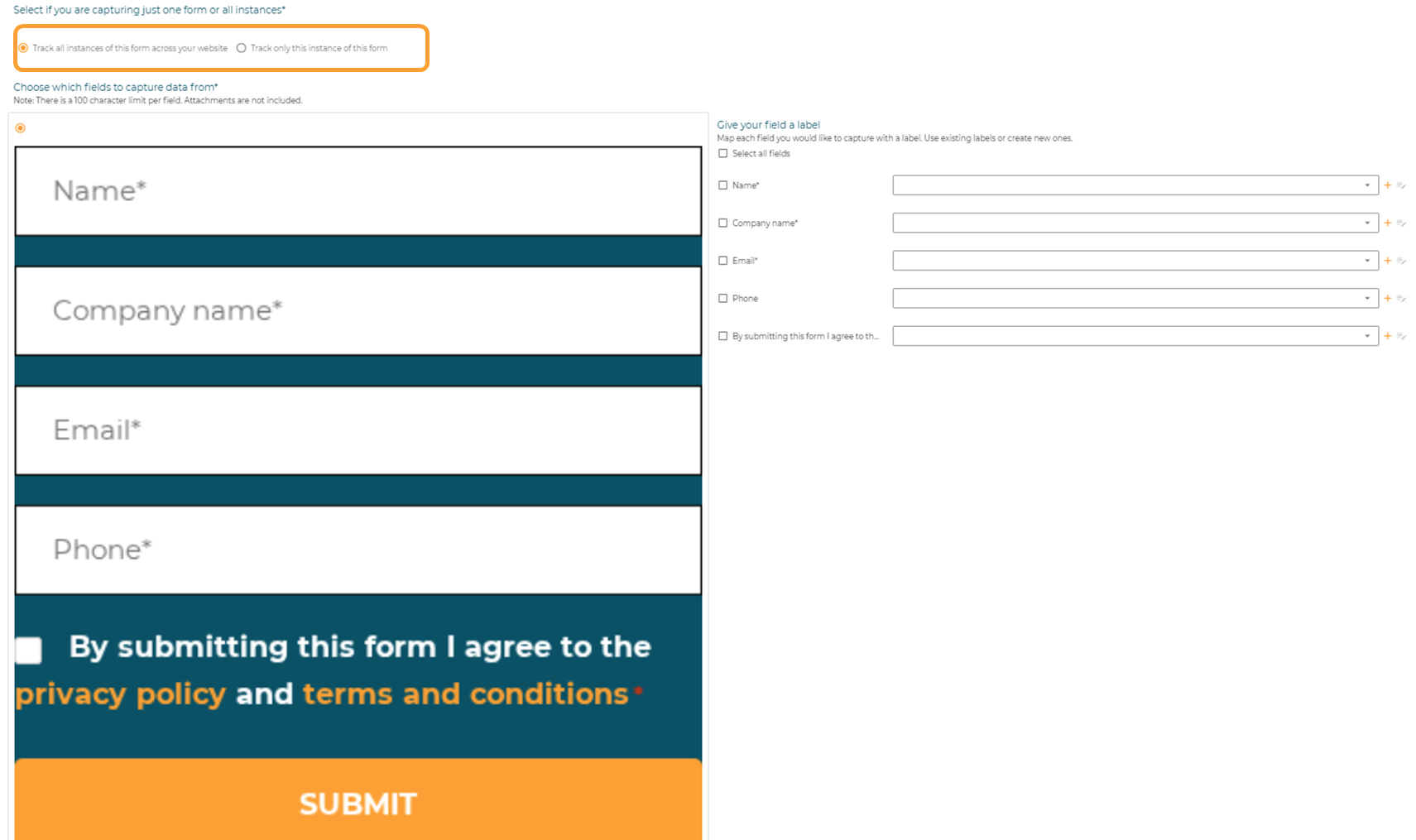
Track and capture form field data will show the preview as well as allow you to configure the relevant fields of the form that should be included with your conversion data, e.g. Email address.
When that's completed, select whether you are tracking all instance of the form across your website or only the singular instance of the form.
Finally, you should create or select a conversion category. This assigns a label to each conversion so they can be grouped e.g. Sale, Service, etc. These can then be used in filters and secondary dimensions to gain more granularity in your reports.

SAVE your conversion.